Welcome!
 Check out my Windows quiz here!
Should you switch to Win 10 LTSC?
Written 14th October 2026
It is one year today since Windows 10 went 'end of life'. And yes, I did specifically remember this
date! However, Microsoft has now extended the ESU programme until October 2027, so Windows 10 isn't
really gone just yet. Anyways, I thought I would take a moment to tell you about Windows 10 LTSC if
you haven't already heard of it, as it is the best option if you can't/don't want to upgrade to 11.
LTSC stands for 'Long Term Servicing Channel'. There are two types available, IoT Enterprise and Enterprise,
and a new version is released every 3 years or so. The versions are based off of the current Windows
version at the time, e.g. LTSC 2021 is based off Windows 10 21H2. I am currently using IoT
Enterprise LTSC 2021 on my main computer.
The IoT version is mostly intended for devices such as ATMs, medical equipment, kiosks, and other
things like that. Which I think makes it kind of cool to use on your own PC! But it is basically
identical to the general Enterprise version under the hood, they only really differ in licencing
rules and the number of years of support.
LTSC 2021 IoT Enterprise will be supported until January 2032, so you can effectively keep Windows
10 for another 5 or so years without any security concerns. But what is also fantastic about it in
my opinion, is that it doesn't come with any of the crappy UWP programs that Windows 10 has
preinstalled. Not even the Microsoft Store! Of course you can still install them yourself if you
wish to do so.
I have been using it as my daily driver for over a year now, and have installed it on several other
computers, both for myself and others. It runs fast considering my main PC is from 2014 and has HDDs
only! You can't buy consumer licences for LTSC, so if you want to activate it, you will need to use
other methods. I recommend downloading both the ISO and the activation script from massgrave.dev.
At this point maybe you are thinking, why not switch to Linux instead? If you only really use your
computer for one or two things and do not care about the operating system that it runs on, then of
course you could do this. Or if you are interested in learning how another OS does things, this
would also be a useful exercise. If you believe everything you hear on the Internet, you may think
there has been a 'mass migration' to Linux in the past year or so. I think this is over exaggerated,
but Microsoft has certainly not done much to help the reputation of Windows recently. However, I
hope that LTSC can show you the 'real' Windows, without all the junk added to it. Sure, it is maybe
not the same as the glory days of 2000, XP, or 7, but it is a darn sight better than any other
operating systems on offer these days. I will be sticking with LTSC right until the end.
Long Live
Windows!
F9 Media Key - Version 2.0
Written 7th October 2026
I have now added a tray icon to the hotkey program from my previous post. This includes options to
toggle the key off/on, and also exit the program cleanly. The error checking has been improved too.
This was a rather interesting thing to program, as to make a tray icon work correctly, the program
requires an actual window to receive and handle messages. However, this window is kept invisible as
it is not needed in the program other than for that purpose. Technically you can have a message-only
window rather than a ‘fully fledged’ one, but it will not receive broadcast messages. What are
‘broadcast messages’ you may ask? These are messages posted to all top level windows in the system.
In this specific case, it is a ‘TaskbarCreated’ message that I am wanting to make sure my program
gets. When Explorer crashes and restarts (this is not a particularly uncommon occurrence!) it will
use PostMessage(HWND_BROADCAST, …) to tell all the other windows/programs about it.
Then when my
program receives this, it can add its tray icon back again, avoiding an annoying and hard to spot
bug. This is the sort of obscure little thing you only find out about after digging around in old
blog/forum posts for hours!
However, absolutely none of these extra additions are needed in order to make the hotkey work as
expected. I just wanted to have a go at doing this and it improves the usability of the program
quite a bit. The code for the original version is still available for download in my previous post.
I have compiled it as 32-bit, so it is compatible with 32/64-bit Windows versions, from Vista
upwards. I did try to run it on XP too, however I will need to get an older SDK or toolkit and then
compile it again for this to work.
You can download the code here and the program here.
I am planning to also make a GitHub account so that I can keep my programs and extra documentation
there in the future. So stay tuned!
Though, I will mention there is a small issue with this program. Although I can confidently say it
is not an issue with my code! The key will (usually) not work unless the video or audio has been
started first, it will not start it for you. It also may not work when audio in a specific browser
tab or program is muted. This is due to how programs ‘claim focus’ for media keys. Once my program
sends VK_MEDIA_PLAY_PAUSE, it is up to Windows as to where it goes. I have looked into
ways to solve
this problem, but there are not any real clean solutions. There is not really an API exposed to deal
with which program holds the media focus. I did come across one potential solution involving WinRT,
but it is messy and clunky for what is supposed to be a simple program. In reality, the issue is not
noticeable for general use.
A small hotkey program
Written 2nd September 2026
Wow, it has been a rather long time since I have updated this site! I did have a goal of writing
something every fortnight, but that clearly hasn’t happened. But anyways, I thought I would quickly
talk about the small program I wrote last night.
Depending on the sort of keyboard you have, you may have encountered the annoying situation where
you have a video playing in one window, but you are typing or doing something else in another, and
can’t pause/play the video without using the mouse to click on it.
If the window is out of focus, the space bar (or whatever other keyboard shortcut you would
typically use on a video) will not work, as that input is not being directed to the program playing
the video. Some keyboards have media keys, these will pause/play/skip whatever is playing no matter
which window is in focus.
My small WinAPI program creates a hotkey, uses a message loop to wait for that key to be pressed,
and posts a play/pause message when the hotkey is pressed.
I didn’t make this program for myself; it is actually for my sister to use at university on the
shared computers. That is why it was important that it did not need admin privileges to run (you can
permanently remap keys, this program just does it temporarily.)
I won’t put all the code here, as it is a little too long for that, but you can download it here.
But here is the hotkey function, so you can see a bit of how it works.
/*hwnd is null, messages generated by the key will be added to queue instead*/
/*id just has to be something that is not in use, 1 is fine*/
/*don't need fsModifiers param either as it is just the single key*/
/*VK (virtual key code) VK_F9. Can change to whatever is not in use*/

if (!(RegisterHotKey(NULL, 1, 0, VK_F9))) {

	MessageBoxW(
		NULL,
		L"Well that didn't work! (RegisterHotKey failed.)",
		L"Uh oh!",
		MB_OK | MB_ICONERROR
	);

	return 1;

}
The virtual key codes are pretty cool I think, even if your keyboard doesn’t have a specific key (e.g. F24), if you send a virtual key input to Windows, it will treat it the same as if you had actually pressed that key on a physical keyboard. Physical keys on the keyboard generate the exact same VK codes like the hotkey or a remapped key would.
And yes, I am aware that I could have just written an AHK script to do this in about 3 lines, but where’s the fun in that!
You can basically make anything you want happen when the hot key is pressed, it is just the ‘trigger’ to run the code. It could create a file and write something in it, play a sound, open a website, and a lot more. It is definitely a fun function to mess around with.
You can download the fully portable, compiled EXE right here. I promise it is not a virus, despite what Windows may say when you attempt to run it! Also, if you want it to run automatically, just drop it in your startup folder.
I also wanted to mention that I am aware I don’t really talk about Windows ‘modding’ all that much on this blog, despite what it says at the top of this website… (I tend to lean towards the “and more!” part of that statement!)
I absolutely will be writing modding tools in the future, but I wanted to improve my C/WinAPI programming skills first, as modding stuff can get complicated pretty quickly. Especially shell programming, DLL injection/API hooking, and resource editing! But I am most definitely working on things behind the scenes, and I expect the string table replacer to finally be complete in a few weeks :)
Crashing Windows 95 in 8 lines of code...
Written 11th July 2026
If you compile the program below into an EXE and run it on Windows 95, 98, or ME, I can guarantee
you that it will crash the OS almost every time. But why is this the case and what is the code
doing?
int main() {

   unsigned char* pBytes = (unsigned char*)0x00040000;
   int i = 0;

   for (; i < 50000; i++) {
	   pBytes[i] = 0;
   }

   return 0;
}
If you are not familiar with the basics of C or C++, I will briefly explain what a pointer is, as that is the key concept in this program.
A pointer really just stores a memory address. The computer’s memory is divided into bytes, with each of these having its own address. For example, you could create a variable:
int i = 10 and the value 10 may
be stored at memory address 0x0000C10E in the computer. This address is the starting point of your int
i, which actually takes up 4 bytes, so the next piece of data will likely be at 0x0000C112. Pointers are
a way to store these addresses so that you can use them in your program. As an example, int *p = &i
means ‘take the address of variable i and store it in p’. So now the value of p is 0x0000C10E. If you
wanted to change the value of i without using it directly, you can ‘dereference’ the pointer, meaning
‘get the value stored at the memory address that p points to’. This would be done by *p = 7. Now if you
printed the value of i, it would be 7, not 10. This is essentially what the program above is doing, but
in a more ‘destructive’ way.You can probably find a much better explanation somewhere else, but that will do for the purposes of this.
In my program, you will see unsigned char* pBytes. Unsigned char is used to view binary data, a sort of ‘universal’ type when you want to view things byte by byte. Essentially pBytes is set to point to the address 0x00040000. Next, the loop is just writing a zero to that memory location, and then incrementing the pointer so it points to the next address. It does this 50,000 times, so writes 50kB in total. That’s it!
But why that specific address, and why does it crash Windows?
Well, for all it introduced to the world of computing, Windows 95 was notoriously lacking in memory protection (along with the rest of the 9x family). Each process running on the OS does not have its own private memory space, there are certain areas that are shared between all. This means that a misbehaving program can corrupt memory being used by other programs and possibly corrupt the kernel itself in some situations. Sometimes these exceptions are caught, resulting in in the classic “illegal operation” error you may have seen before, but if they are not, it can easily result in a blue screen.
You may think, if Windows 95 had so many problems, then why didn’t Microsoft just fix it? Well, I wondered the same thing, and the short answer is it couldn’t really be ‘fixed’, at least not without redesigning the entire OS (which is essentially what NT was). Windows 95 was built on top of MS-DOS, and for this reason, some argue it isn’t even an operating system in its own right, but more of a ‘shell’ for DOS. Due to this, it is a hybrid of 16 bit and 32 bit components, allowing for compatibility with existing software at the time, but limiting the ‘modern’ features (such as proper memory protection) that could be added to the OS. There is a fair bit more to this that I haven’t covered, but I recommend reading about it as it is an interesting topic and gives some historical perspective :)

Address 0x00040000 in Windows 95 corresponds to the general location of quite a few important things, including BIOS data, DOS memory blocks, and code involved in the switch to protected mode when the OS boots. This is part of the memory region that is mapped into every process. There are many of these mapped locations you can find out about online, I tested quite a few of them with my program, so far this was the only one to result in a crash.
Another interesting point about my program is that if the data is cast to unsigned char before writing it to memory, it won’t crash and will instead just give the error pictured above. I don’t really know why this is, but will be investigating further!
If you try to run the program on any NT based version of Windows, it will of course not work. Memory protection and process isolation are just a couple of the many improvements that came with NT, making constant crashes mostly a thing of the past. Although, you could say that the bad reputation stuck with Windows, perhaps undeservedly so.

Entry point not found!
Written 19th June 2026
I dusted off my old XP computer the other night to burn a DVD, as my usual ‘daily driver’ for those
sorts of things is currently out of action due to the PSU going up in smoke! But that is maybe a
story for another day…
I didn’t have a DVD burning program installed on XP, so I just took an installer for DVDStyler
that I had downloaded previously and hoped it would be compatible. It installed without issue, but
as soon as I tried to run it, I got the error pictured below.

If you have ever tried to run newer programs on older Windows versions, you have probably seen this
error before. I am certainly quite familiar with it!
I am always happy when I see an error message if I can think through and explain the mechanisms
behind it, and if I can’t then it just becomes something new and interesting to learn! Or that is
how I see it anyways :)
Luckily for me, this was one I did understand to some degree.
Basically, a program or executable that you run contains many functions that it will call to perform
its specific job, whether it is a simple console tool or a large complex program with a GUI such as
DVDStyler. No matter the purpose of the program or the language it was originally written in, if it
has been compiled into a Windows executable, it will be calling WinAPI functions. You can see an
example of one in the error above: AcquireSRWLockExclusive. These functions are used
all throughout
the user mode side of the OS, by 3rd party programs, pre-installed programs, and system components
themselves. They are stored in DLLs, for example kernel32.dll as mentioned in the
message. I like to
think of these as a ‘dictionary’ of functions (although they can contain other things too).
When you double click the program to start it, Windows will look at the program’s import
table, then
find all the functions listed and provide the program with pointers to these. The import table is a
list of every function a program needs when it loads and which DLL it comes from. If one of them is
not found, this is the missing ‘procedure entry point’. This is usually due to the function only
existing in later versions of the OS. Windows will not continue loading the program unless all the
required functions exist, so instead you will see an error message similar to the one above!
Some of that was a bit of an oversimplification, but that is a general overview of the reason behind
the error message. So, if you didn’t already know that, now you do, and you can take satisfaction in
understanding why this error happens if you ever see it!
Something I didn’t know is that there is actually a very easy way to see a program's import table if you have the Visual
Studio command prompt installed. There are other programs you can use to see it but I thought this
was a nice simple way to do so. Just use the command
dumpbin /imports <path to EXE or DLL> as shown
in my screenshot below. You can also pipe it into findstr to search for something
specific.

You can see here the results of filtering the output and then running the full command. dumpbin
/imports will list all the required functions grouped by the DLL that they reside in (the list goes
on much longer than what is shown).
In the case of the DVDStyler program specifically, the AcquireSRWLockExclusive function
was not in
the import table of the executable itself, but it was in the import table of several supporting DLLs
which are resolved after checking the import table of the main EXE.
As for what the AcquireSRWLockExclusive actually does, I am afraid I cannot tell you as I don’t
really know myself! I have looked into it, but it is a little bit above my level of understanding at
this point. Anyways, this was actually supposed to be a shorter post, but I can’t seem to do that!
My latest project - string table replacer
Written 28th May 2026
As a nice follow on from my last post, I thought I'd talk a little about a project I have
been
working on recently. With all this string replacing that I get up to with Resource Hacker, I
thought
why not have a go at trying to use the API to do it myself! So, I went away and started
researching
how to go about this and which functions I needed to use. It is not too complex when you
break it
down, and I feel that working on this program has greatly improved not just my understanding
of the
Windows API, but also C programming in general.
At its core, there are three main things that the program does. Firstly, it enumerates
string table blocks in a file, usually a DLL or EXE. More on this soon. It then replaces the
desired
string inside the block with the new one, and finally, writes the whole block back. As this
project
covered a quite few interesting and important concepts, I will take the time to explain
these in a
bit more depth over a few posts.
To start with, it is important to understand a
little about
how Windows handles resources. Resources cover lots of different things - string tables,
icons,
cursors, and bitmaps, amongst others. These are all common things to mod, of course. The
resources
are embedded as data inside a PE (Portable Executable) file. They are data, not code. This
is an
important distinction. The resources are stored in a special section of the PE file called
.rsrc. The .rsrc is made up of three levels: Resource Type, (e.g.
RT_STRING, RT_ICON, and so forth), Resource Name or ID, and
Language
(allowing for
localisation).
As for string tables specifically, there is quite a nice pattern to how they work (I think
so,
anyway :) ). They are made up of blocks of 16 strings, with block numbers starting from 1.
Within
the block, the strings are numbered from 0 - 15. You can think of it as a 2d array of sorts.
Given a
resource ID, you can work out which block and index it is, e.g. with ID 1234. Since there
are 16
strings in each block, you can divide the ID by 16 to get the block number. 1234 / 16 =
77.125, this
is rounded
down to 77 as the 0.125 indicates the index within the 77th block. 1234 % 16 = 2, so this is
index
2. And 2/16 = 0.125 from 77.125, so it all makes sense!
To show this in action, I have included the loop from my program below. This is of course
not the
full program, it is part of a callback function.
/*name = Resource ID, ResID = blockIndex + 1, so blockId = resID - 1*/
int blockId = (int)(ULONG_PTR)name - 1;

/*baseStringId = blockId * 16 */
int baseStringId = blockId * 16;

/*This is the bit that iterates thru the 16 strings*/
for (int i = 0; i < 16; i++)
{
    /*Read the length, then move the pointer to string data*/
    WORD len = *p++;

        if (len > 0)
        {
            /*Printing the string ID to the console.*/
            wprintf(L"ID %d: ", baseStringId + i);

            /*Printing the actual string*/
            wprintf(L"%.*s\n", len, (const WCHAR*)p);
        }

        /*Move the pointer past the string's chars*/
        p += len;
}
A bit of an explanation
int blockId = (int)(ULONG_PTR)name - 1 looks complicated due to the casting.
nameis
the resource identifier for the block. For string tables, the resource ID is the block index +
1. This
was passed to the function as a LPWSTR (Long pointer to a wide (a.k.a. unicode)
string).
Ignore the
weird Windows data types for now, I will definitely do a post on that sometime soon. Basically
name is cast from LPWSTR to ULONG_PTR, which is an
unsigned
long used for casting/pointer
arithmetic. I only learnt about this type recently. This is then cast to an int so it can
assigned
to blockId.int baseStringId = blockId * 16 is pretty self explanatory I
think. Next
is the for loop which actually iterates through the whole block. Each string starts with a WORD
representing the length. The pointer is the moved to the start of the string data accordingly.
The
string ID is then printed to the console, this being the ,baseStringId from earlier
plus
the value of i.
wprintf(L"%.*s\n", len, (const WCHAR*)p) also looks confusing, but is alright if
you break
it down. %.*s means to print len chars from the given string, I did
not know
this one myself, I had to
look it up. (const WCHAR*)p is just the string, this is more apparent in the full
program
but is not
that important for this explanation. p += len moves the pointer past the current
string’s
characters so
that the next one can be read.
This was just a small snippet of what I have to demonstrate a little about how string tables are structured in Windows. I have still got some finishing touches to make to the full program, and in the next post I will talk more about the code itself along with some of the important functions and what they are doing. It is by far my most ambitious attempt at a WinAPI program to date, so I am sure there will be some mistakes or things I could have done better.
I spent 5 hours looking for this string...
Written 13th May 2026
A month or so ago, I was looking through some system files with Resource Hacker for strings I could change. Not the most productive use of my time, but a bit of fun, nonetheless. For some reason, the string I ended up changing was the one that appears when the LSASS process is killed (this is in the string table of wininit.exe.mui). So not exactly one that is going to be displayed on a regular basis. The result was as follows, my message isn’t even that good!
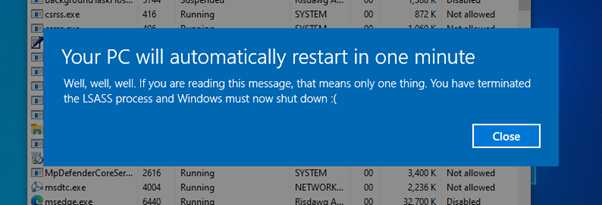
As you can see, the title of the message box is still the default text (wininit.exe.mui did not contain this string). This annoyed me greatly - I just had to change it, even if there was no real use in doing so. This search led me to at least 10 MUI files, 5 different programs, 2 virtual machines (and my real computer), 8 BSODs, and about 5 hours of my time!
I knew the string was not in wininit.exe.mui along with the other one, so I began by looking in other files which could possibly contain it – winlogon.exe.mui, wlrmdr.exe.mui, shutdownux.dll among many others. It became a bit of a guessing game at this point, but I wasn’t finding what I was looking for.
I ended up trying to frantically examine the DLLs that wlrmdr/winlogon had loaded after killing the LSASS process, but it is rather hard to catch it with only a one minute window before the system shuts down! If you didn’t know, when you kill LSASS (or it exits for some other reason) it triggers a one minute shutdown timer. Without going into too much detail, LSASS is responsible for authentication and security in Windows, and without it, although the system is still ‘functional’, it must reboot so that this process can be restarted and security can be restored. I actually did a ‘deep dive’ into this specific behaviour last year, but that is a story for another day.
I was starting to think that the string must be hardcoded into the executable somehow, which was a rather dumb idea looking back as the string directly underneath it in the message box obviously was not! At this point I decided I needed more ‘advanced’ tools for the job, and downloaded WinDbg (the most common Windows debugger) despite having no clue how to use it. I did know it could search the memory of a process, and that the string I wanted had to be in there somewhere, so surely with the debugger I could finally find it.
I started off trying to attach the debugger to winlogon.exe, as I had discovered that winlogon was the parent of the wlrmdr process (the one responsible for the shutdown dialog box) and passed that string to it as a command line argument. Therefore the string must have come from there.
However, my next setback came when I tried to set the debugger to automatically attach to the process on boot. This involves creating a reg key. No matter what I did, it would blue screen on boot every time. I had to remove the reg key via the command prompt and try again several times. I then learnt that you cannot use the user mode debugger to attach to winlogon as it is a PPL (Protected Process Light). I will not go into detail about what this is right now as this post is already too long! Anyways, this change was only made to Windows 10 in about 2019 or so, so I went and got an old RTM ISO from 2015. It was a blast from the past, reminded me of the computer I had as a kid. Better than that, I was finally able to attach the debugger!
So, I did some research and learnt a few commands to use in WinDbg.
s -u 0x0 L?0xffffffff “restart” ~ Searches the entire address space for a Unicode
string.childdbg 1 ~ Attaches the debugger to any subsequent child processes.For some reason, I had no luck finding the string this way no matter what I did. The commands are not wrong as I have checked multiple sources. At this point, I had almost reached the end of my tether and was quite ready to give up. But I just couldn’t let it go!
I decided to have another go looking at exactly what happens in Process Explorer when I killed LSASS. Keeping a close eye on winlogon, I could see that it created the wlrmdr process as expected, and in the DLL list I saw winlogon.exe.mui light up in green, meaning the process had just loaded it. This had to be the one to contain the elusive string! But I had already checked it thoroughly, or so I thought.
Sure enough, I carefully looked through every string in the string table - it was right there and had been all along. It was probably the first file I ‘checked’ right back at the start, funnily enough. Forgive me, it was late when I went down this rabbit hole and I clearly wasn’t paying enough attention to what I was doing. However, it is not all bad as I learnt some new things along the way, which is always a win in my book!
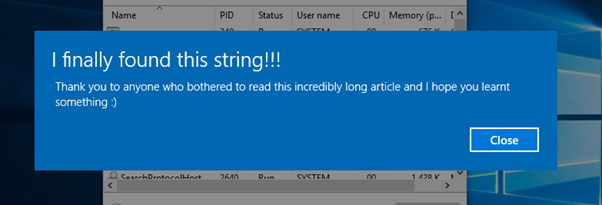
A Side Note
If you are interested in changing system file strings with Resource Hacker or a similar program, you should know that you cannot just replace the original with your modified one when the system is running. In the case of wininit.exe, user32.dll, winlogon.exe, and their respective MUIs, they are in constant use by the OS and Windows will not let you touch them unless you boot into the recovery environment (for some files you will also be allowed if you run as TrustedInstaller). There are more than just those listed of course, they were just some examples. Press F8 on boot up or hold shift while you click the restart button in order to get to the recovery menu. Go to the command prompt, find your Windows drive, and use xcopy to copy over the original files as shown in the picture below.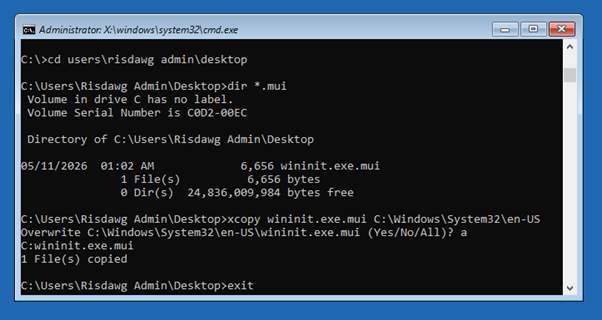
Custom Solitaire Background - A Simple But Fun Mod
Written 5th May 2026
Want some cool new backgrounds on your Solitaire? I just did this messing around with some DLL files
one night, it is a fun and basic mod that you can do in minutes. There are lots and lots of little
things in Windows that you can mod in this way, I highly recommend that you mess around with these
tools and see what you can change! (in a virtual machine perhaps…)
First things first, I did
this with the old Solitaire from Windows 7/Vista, this mod will not work the same way on the modern
store app version. Personally, I think the modern version sucks, it is subscription based and full
of ads. If you would like the old one back, you can download it along with the other classic games
here.
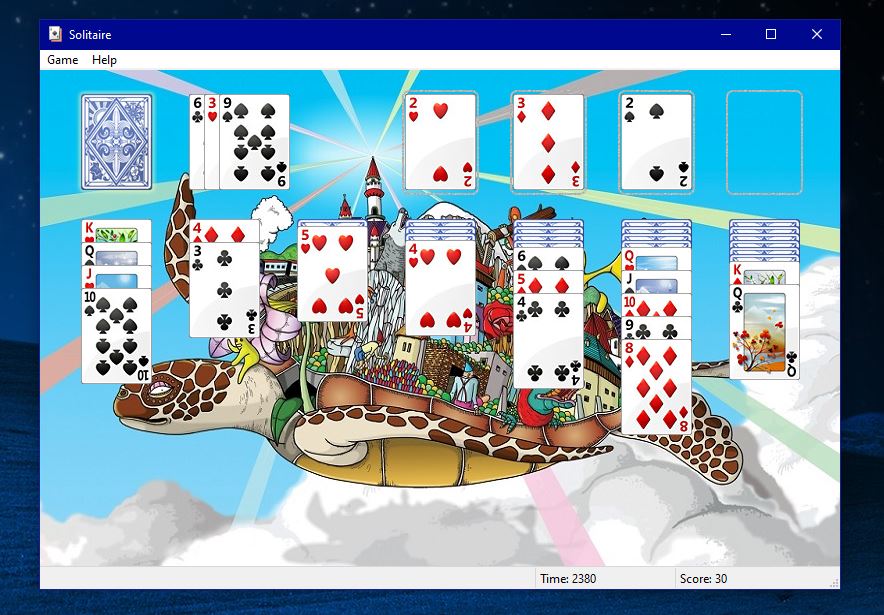
With that said, let’s get started. Use a tool such
as Process
Explorer
to see which DLLs the solitaire.exe process has
loaded. Make sure you go to View and select Show Lower Pane, and set the pane view to DLLs. With
that done, scroll down the list or search to find the Solitaire executable. Click on it, and you
will see that it is making use of quite a few DLLs. After a while, you will start to know what a lot
of these are. Most of them provide system-wide functions to programs and Windows itself, and are not
specifically related to solitaire.
Hint: the one you want is called CardGames.dll
:)
Process Explorer also has descriptions of most DLLs, these can be helpful in identifying
what you are looking for. Next go to this file in explorer, and make a copy on your desktop. Open it
using Resource Hacker
or a similar tool (unless you feel like doing it manually using the API!) and
expand the Data folder on the left side and go down to BACKGROUNDS\FELT.jpg (or whichever one you
wish to replace). Right click it and go to replace resource then select file. This will open a file
pick dialog, make sure whatever image you pick is the same format and the same size, you can see the
size of the current resource image at the bottom of the window in Resource Hacker (I just resized
mine in MS Paint). You will also need to replace the other image file ending in X2, e.g.
BACKGROUNDS\FELTX2.jpg, with another copy of your image at the correct size. This is so the
background image can resize appropriately when you make the solitaire window full screen.
As
you may have noticed, there are a lot of other things you could change in here, e.g. replace the
.wma sound files, change aspects of the animations in the xml files, change the thumbnails, and so
on.
Next, click the save icon in Resource Hacker, this will save both an original copy and
the modified one to your desktop. Then all that is left to do is drop that file in the same
directory as the original (the path of CardGames.dll is
C:\Program Files\Microsoft Games\Solitaire\CardGames.dll.
You will get prompted as to whether you wish to replace the file
with the same name, click yes and give admin permission. Now you can open up solitaire and should be
able to see your new background! I may add to this post later with instructions on how to change the
thumbnails, so stay tuned!
Year 30k? An interesting experiment
Written 10th March 2026
I wrote this little program a while back when I first started learning about the Windows API. For less than 20 lines, it has given me a surprising amount of entertainment and learning value! All it is doing is creating a struct representing the time you want to change the system to, and then passing it to theSetSystemTime() function. If you set the year to some absurd value,
it can cause a
variety of problems to occur, and I found it rather interesting to watch this unfold.
#include <Windows.h>
#include <stdio.h>

int main()
{
	SYSTEMTIME time;

	time.wYear         = 29999;
	time.wMonth        = 12;
	time.wDayOfWeek    = 6;     // this gets ignored by the function anyway
	time.wDay          = 31;
	time.wHour         = 23;
	time.wMinute       = 50;
	time.wSecond       = 0;
	time.wMilliseconds = 0;

/* Passes a pointer to the systemtime struct from above */
/* If it fails, print the error and return 1 to the OS */

	if (!SetSystemTime(&time)) {
		printf("Failed to set system time. Error: %lu\n", GetLastError());
		return 1;
	}

	printf("System time updated.\n");
	return 0;
}
To explain it a bit further, the year value of the
SYSTEMTIME struct is a 16 bit
unsigned int
(called WORD in WinAPI) meaning that it should be able to accept values from 0 all the
way to 65535
(2^16 - 1). However, there are at least two factors preventing this from being possible.
Firstly, Windows restricts the valid value internally to the range of
FILETIME. It is
used to keep
track of time in various system components including NTFS. FILETIME is a 64 bit value
that counts
100 nanosecond intervals since the 1st of January 1601, 00:00:00. It is like the Unix epoch of 1st
Jan 1970, if you have ever seen a file in Windows randomly have a date in the 17th century, this is
where that value comes from! Supposedly the Windows epoch was chosen as it lines up with the 400
year cycle of the Gregorian calendar (making some of the leap year math easier), although I could
not find any info to confirm this for certain. Anyways, the point is this 64 bit value (I think it
is called a Qword) can only store the 100ns ticks until the year 30827.
The second reason the year cannot be set that high is that Windows simply won’t let you! I have had almost no luck getting the year to stick much above 5000. However, I have not been able to find out why exactly or what really determines whether the year value is acceptable. There is next to no information that I could find about this topic online or in any other material I have read. With the year set at 5000, you can still observe some interesting behaviour, but this experiment has left me with more questions than answers.
In-Place Upgrade to Windows 11
Written 5th September 2025
If your computer is still running Windows 10 but does not support 11, you do have a few options if
you still want to receive security updates. You can
get extended updates for Windows 10, install the LTSC version, bypass the requirements to install
11, or maybe even install Linux!
If you do choose to upgrade, there are a few ways to bypass requirements that you may have seen floating around the web (Rufus, for instance). However almost all of these require a 'clean install' - essentially meaning that you have to completely wipe your existing Windows installation and start fresh. This is of course rather annoying, as you would have to install all your programs again and restore your files from a backup that you hopefully did correctly! So here is a nifty little method to upgrade your unsupported computer to 11 and keep all your files, programs, settings just as they currently are.
- Make sure everything is backed up. Preferably have a saved system image in case anything goes
wrong.
You
can
do this by going to
Control Panel > Backup and Restore (Windows 7) > Create a system
							image.
Back it up to an external drive. This will contain all your personal files as well as those needed for Windows to run.
- Download the Windows 11 ISO image from the Microsoft website.
Scroll down to “Download Windows 11 Disk Image (ISO) for x64 devices”
Select the option that appears, and click confirm at the bottom of the page. This should take
about
15
minutes or so to download.
- Next, find the ISO image in your downloads folder, right click it, and select ‘Mount’. The ISO
image is essentially a digital version of a DVD which you will use to install Windows.
- Once it is mounted, you will need to access it via the command prompt. First check in file
explorer to see which drive letter has been assigned to the mounted ISO. Next, type
cmdin the run dialog box (Win + R) and press ctrl + shift + enter to run the command prompt as admin. Type the drive letter, (e.g. E:) to change directories to the correct drive. Then typecd sourcesto change directories to the sources folder of the Windows ISO.
- The last command you need to type is
.\setupprep.exe /product server. The installation process should start shortly after this. This command ‘tricks’ the installer into thinking that it is installing Windows Server, which does not check your computer for any of the usual requirements needed for Windows 11. Don’t worry though, it is just installing regular Windows 11, whichever edition is equivalent to the edition of 10 currently installed on your computer.
- It will ask you a few questions soon after starting, go with the default option to ‘check for
updates’, as this will prevent you needing to do it later. Accept the EULA, and make sure to
check the ‘keep files, settings, and apps’ option when this appears, this should mean that after
the upgrade, your computer will be exactly as you left it.
- Next, the main part of the installation will start. It will take a little while and restart a
few times, if you have an SSD (which you really should if you are planning to use Windows 11...)
then it should take no more than half an hour.
- If it has all been successful you should see the new Windows 11 welcome screen and you should be
able to log in to your regular account like usual :)
Instructions
A few final things:
There are a few things you may find quite different about Windows 11 coming from 10; however most of
these are easy to change so it is more familiar. For instance, the start menu being in the middle
instead of to the left side. This can be changed by going to Settings > Personalisation > Taskbar >
Taskbar Behaviours and set alignment to left. The right click menu in Windows 11 also has fewer
options and they are in different places. You can get the good old Windows 10 menu back by running
the following command as
administrator:
reg add "HKCU\Software\Classes\CLSID\{86ca1aa0-34aa-4e8b-a509-50c905bae2a2}\InprocServer32" /f /ve.
If you have any issues with the computer after the upgrade and would prefer to go back to Windows
10, you have 10 days to do so, just go to Settings > System > Recovery > Go back. This will take
about an hour and will return your computer to how it was before installing Windows 11, including
all your files.
This is by no means an exhaustive list of the tweaks you can make to it, but these are beginner
friendly and
simple to do. I may write more about this subject at some point in the future.


